Roles and permissions
Roles and permissions within Fellow Intranet and LMS
Within Fellow Intranet and LMS, we use roles to determine what users can see and do within the platform. Roles ensure that responsibilities are clearly divided and that users only have access to functionalities that are relevant to their task or role.
Although the structure of roles within Intranet and LMS is largely the same, the practical implementation differs per environment. Below is an explanation for each platform.
Roles within Fellow Intranet
There are four relevant roles within Fellow Intranet:
- Participant
- Editor
- Assistant
- Manager
These roles can be assigned at platform level as well as at space and event level. An editor at space level only has those rights for that space.
Participant
The Participant is the default role for regular users. A Participant can:
- Access spaces to which they have been invited
- View content within accessible spaces
- Respond to messages, give likes
- Participate in events
- Depending on the settings of the space, they may also add and manage certain content.
Editor
The Editor is responsible for creating and publishing content.
An Editor can:
- Everything a Participant can do
- Create and edit messages, documents and other items
- Create spaces and manage the layout of the spaces
- Manage content components in Setup: Events, Categories, Forms, Templates and Terms of Use.
An Editor does NOT have access to user management.
Assistant
The assistant has user management rights.
An assistant can:
- Everything a participant can do.
- Add and manage users.
- Add users to the appropriate groups and rooms.
The assistant does not have full administrator rights for the entire platform and does not have rights to manage the content on the platform.
Manager
The Manager has the most extensive rights within Fellow Intranet.
A Manager can:
- View and manage all content
- Create and manage spaces
- Assign user roles
- Add or remove members
- View analytics and reports
The Manager is responsible for the functional management of the intranet.
Roles within Fellow LMS
Which role gives access to which activities in a Fellow LMS academy? This article is intended for account managers and administrative staff in Fellow LMS. It describes the different user roles and permissions in the system.
Division of tasks in Fellow LMS's role system

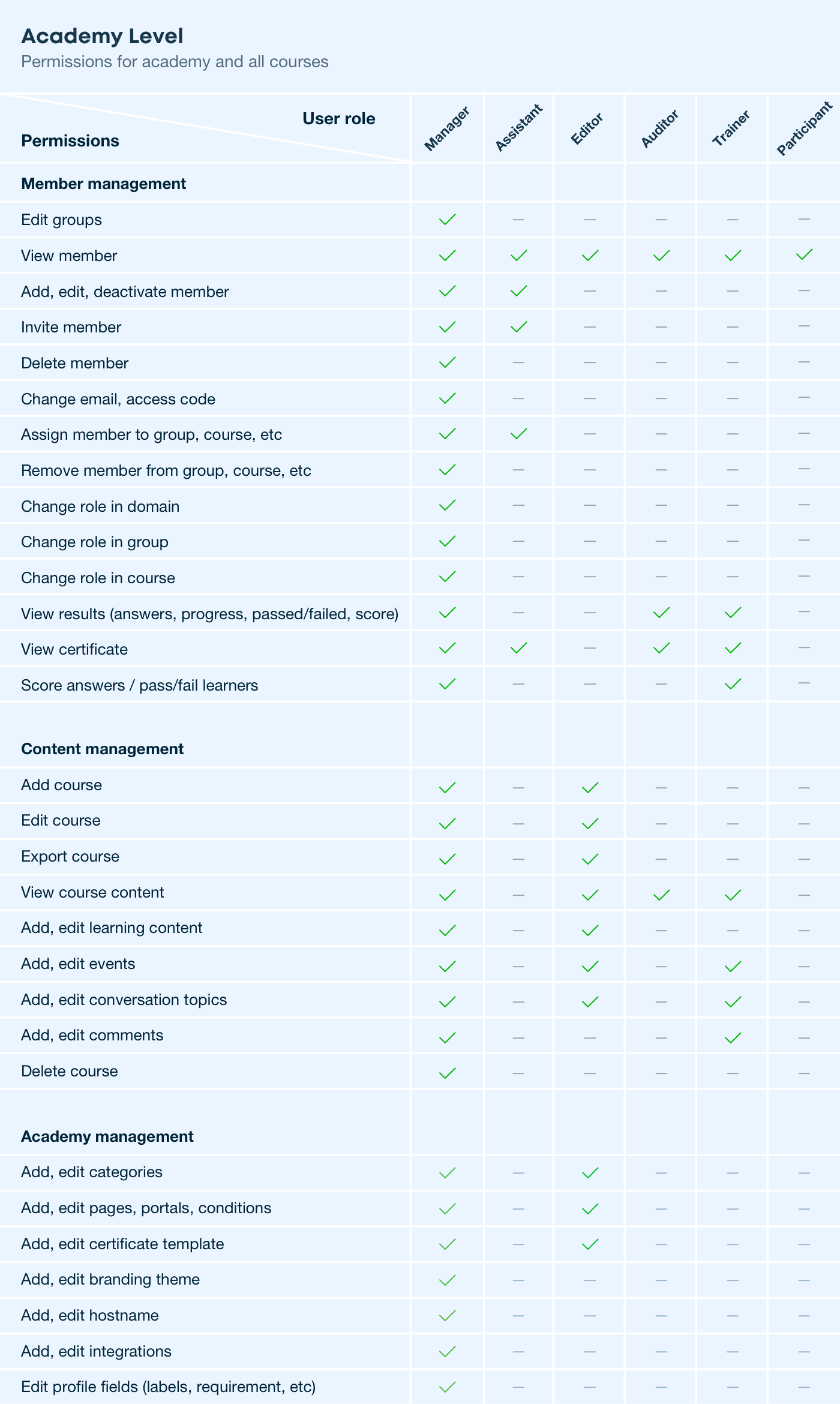
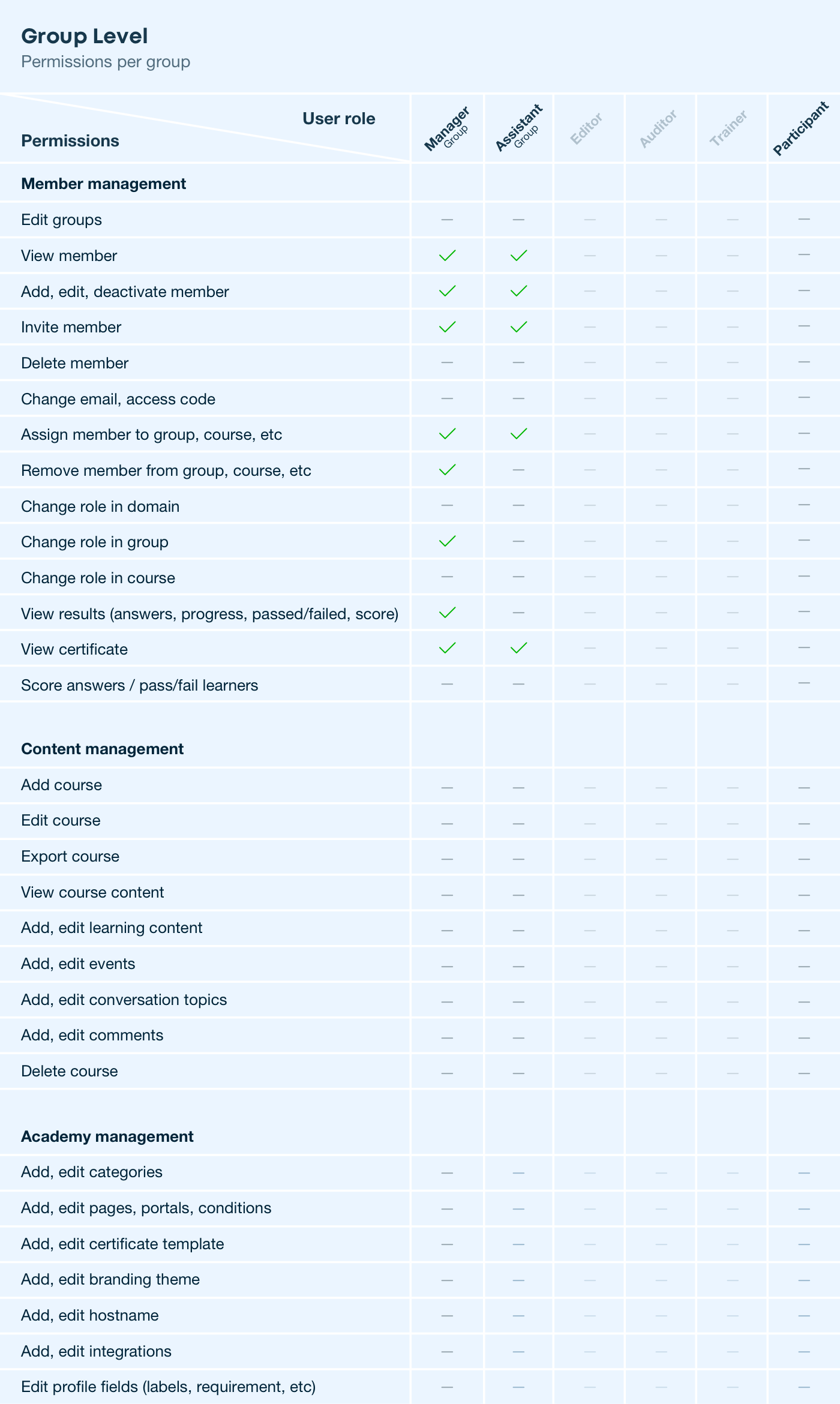
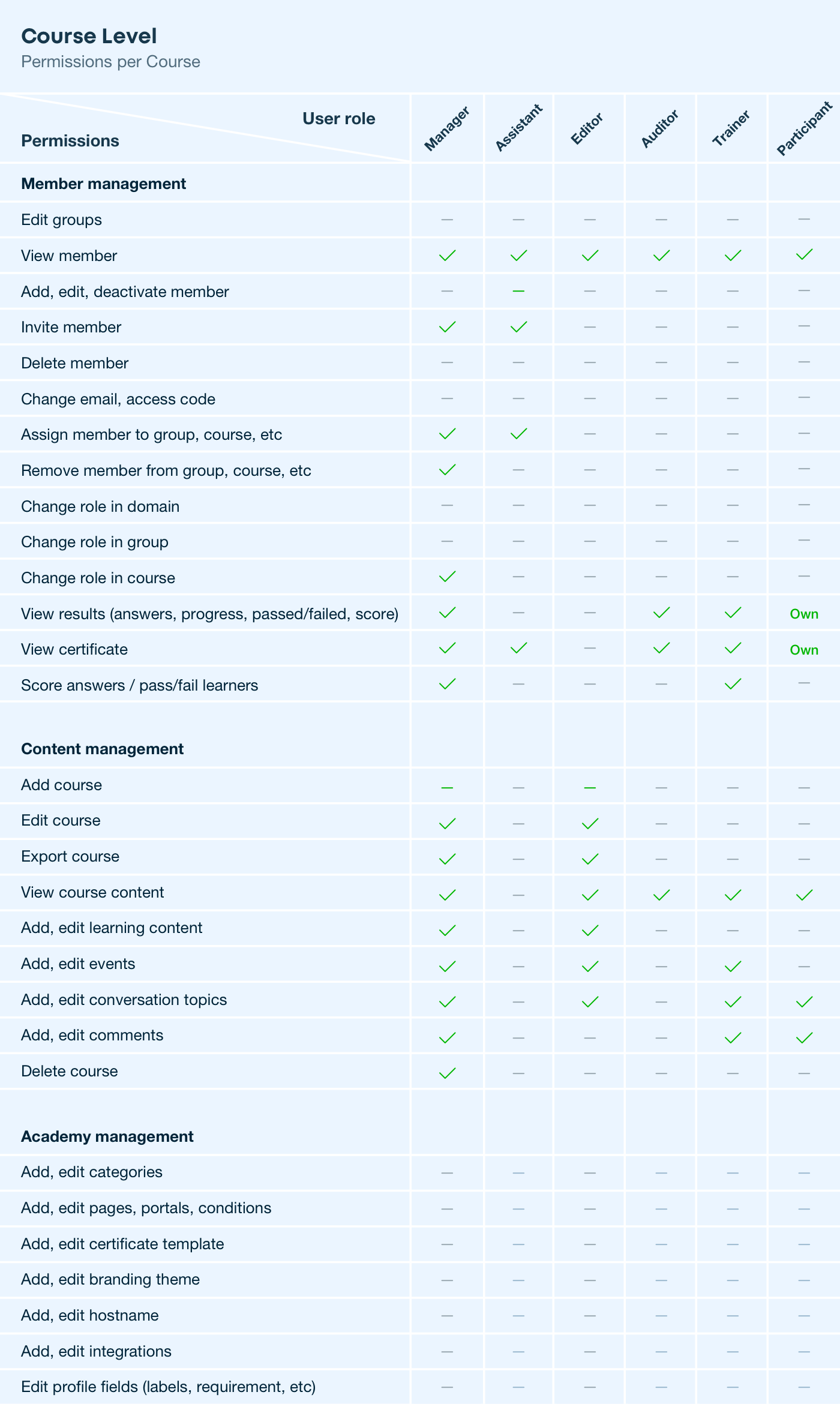
Fellow LMS uses six roles based on tasks such as user management, course management, auditing and feedback. You can assign roles at academy level and at course level. It is important to note that members can have more than one role.
The following table describe the permissions on Academy level in detail:
The following table describe the permissions on Group level in detail:
The following table describe the permissions on Course level in detail:
Assigning multiple roles to members
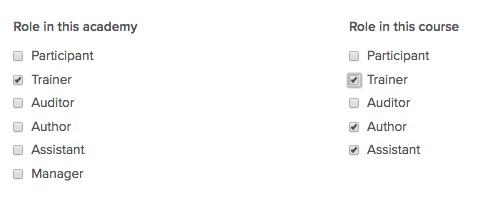
There is no limit to the number of roles in an academy. This means you can assign as many manager roles as you need for your e-learning project, internal processes and guidelines. The same applies to the other roles. Also, each member can have multiple roles. This can vary by course. An employee can be a participant at academy level, which allows them to visit all courses that are open throughout the academy. If they want to be able to edit certain courses, they will be assigned the author role for the corresponding course. If they are to have all rights to a certain course, they are assigned the roles of trainer, assistant and author. They do not have these rights to the other courses unless they are assigned these roles at academy level.
How are member roles assigned? Who manages access rights?
Member rights can be viewed on the members' profile pages and changed directly there. Only managers have the necessary access rights.
General principles of the role system
User roles in Fellow LMS are based on the following principles:
- Clear and meaningful academy management in corporate environments
The access rights and security measures were developed with a focus on the use of online academies in companies. The user roles have a company-like hierarchy. For example, only managers can access system administration and logs. - Adopting security best practices
The user roles in Coursepath are clearly separated from each other. This clear demarcation and the hierarchical levels make it easy to implement and conduct online training in your company.